


Previous
Working with DocumentsNext
Uploading FilesMaster the rich text editor with formatting tools, view modes, and version control.
When you open a document, the center panel displays the rich text editor with a formatting toolbar and your content below. The editor supports real-time collaboration with automatic conflict resolution.
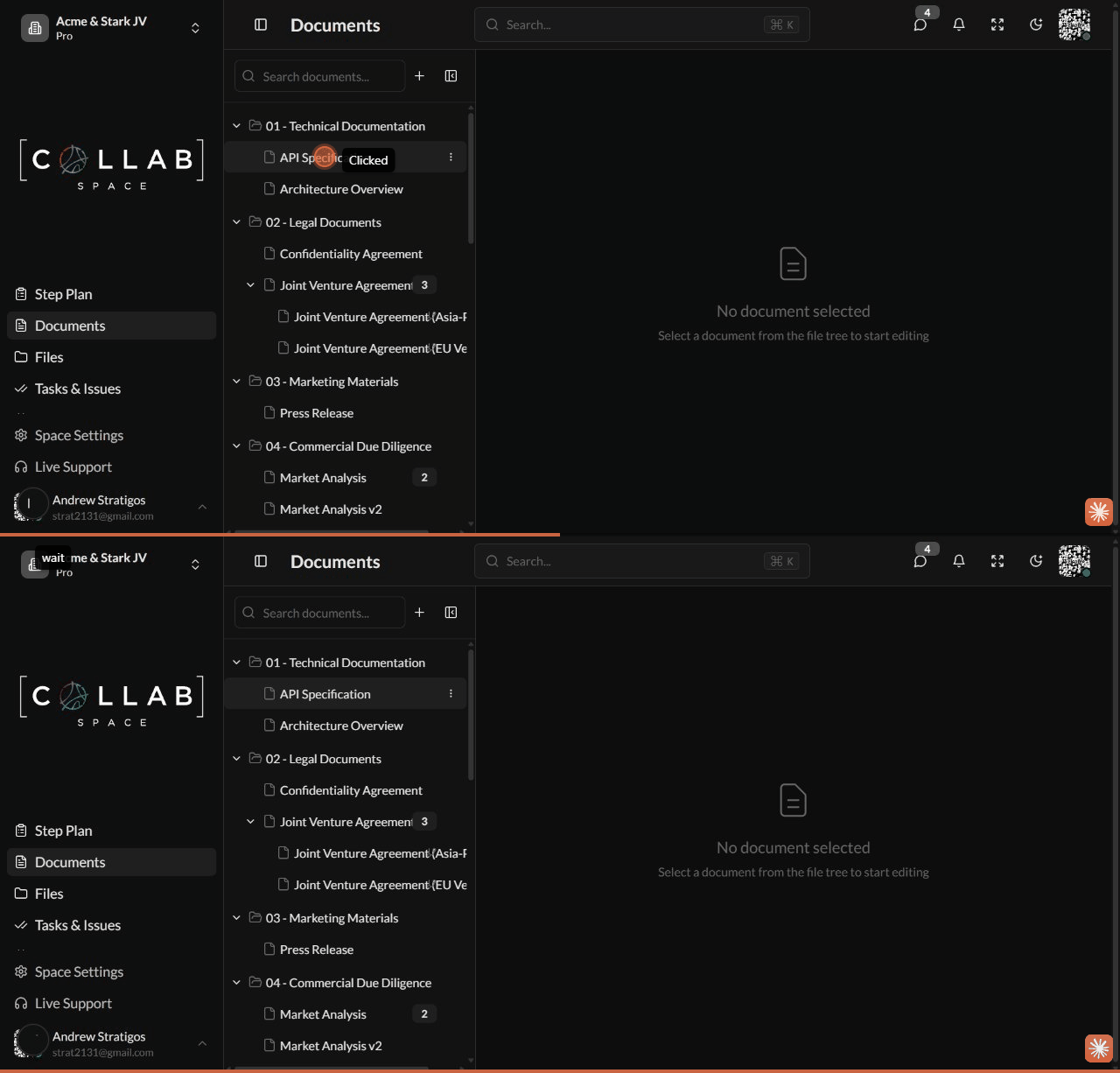
The toolbar provides access to all formatting features. Select text to reveal the formatting toolbar.
| Format | Shortcut | Description |
|---|---|---|
| Bold | Ctrl+B | Make text bold |
| Italic | Ctrl+I | Make text italic |
| Underline | Ctrl+U | Underline text |
| Strikethrough | Ctrl+Shift+X | Strike through text |
| Code | Ctrl+E | Inline code formatting |
| Text Color | Toolbar button | Change text color |
| Link | Toolbar button | Add hyperlink |
Change block types using the dropdown in the toolbar or by typing / to open the slash menu:
| Block Type | Slash Command | Use Case |
|---|---|---|
| Heading 1 | /h1 | Document title |
| Heading 2 | /h2 | Major sections |
| Heading 3 | /h3 | Subsections |
| Bullet List | /bullet | Unordered list items |
| Numbered List | /numbered | Ordered list items |
| Check List | /check | Checkable task items |
| Quote | /quote | Indented quote block |
| Code Block | /code | Multi-line code |
| Table | /table | Data tables |
| Image | /image | Insert images |
| Excalidraw | /excalidraw | Interactive diagrams |
Use the toolbar buttons to nest and unnest blocks:
When AI is enabled, a document AI assistant is available:
Ctrl+J (⌘J on Mac) to open the AI Assistant menu. Pick a preset or type an instruction in the "Ask AI to..." box; the AI's suggestions appear as inline suggestion marks you can accept or reject, and the conversation opens in the AI tab of the right panel.Control the editor canvas width to match your content type:
| Mode | Width | Best For |
|---|---|---|
| Narrow | ~768px | Focused writing, notes |
| Medium | ~1024px | Standard documents |
| Wide | ~1280px | Documents with tables |
| Full Width | 100% | Large tables, dashboards |
| A4 Page | 210mm | Print-ready documents |
To change view mode, click the view mode button in the toolbar and select your preference.
Documents use snapshot-based version control. To save a version:
Ctrl+S)Each save creates a new version entry in the version history.
| Field | Description |
|---|---|
| Version Number | Sequential identifier (v1, v2, v3...) |
| Created Date | When the version was saved |
| Author | Team member who saved the version |
| Message | Commit message describing changes |
To roll back to an earlier snapshot:
You can also open the same list from the floating toolbar's More actions (…) menu via Version history. There are no undo/redo version-stepping arrows — you always restore a specific version directly.
If you have unsaved changes you want to discard:
Your document reverts to the most recently saved version.
The Outline tab in the right panel shows an automatically generated table of contents built from the document's headings. Click any heading in the outline to jump straight to that section — handy for navigating long documents.
Editor documents can be exported to other formats:
| Format | File type |
|---|---|
| Markdown | .md |
| Word | .docx |
| HTML | .html |
The exported file downloads to your device.
Open multiple documents simultaneously in separate tabs:
Your work is protected by automatic draft saving: