


Previous
TemplatesNext
Access ControlFind documents quickly with search and filter options.
The search bar at the top of the file tree provides instant filtering:
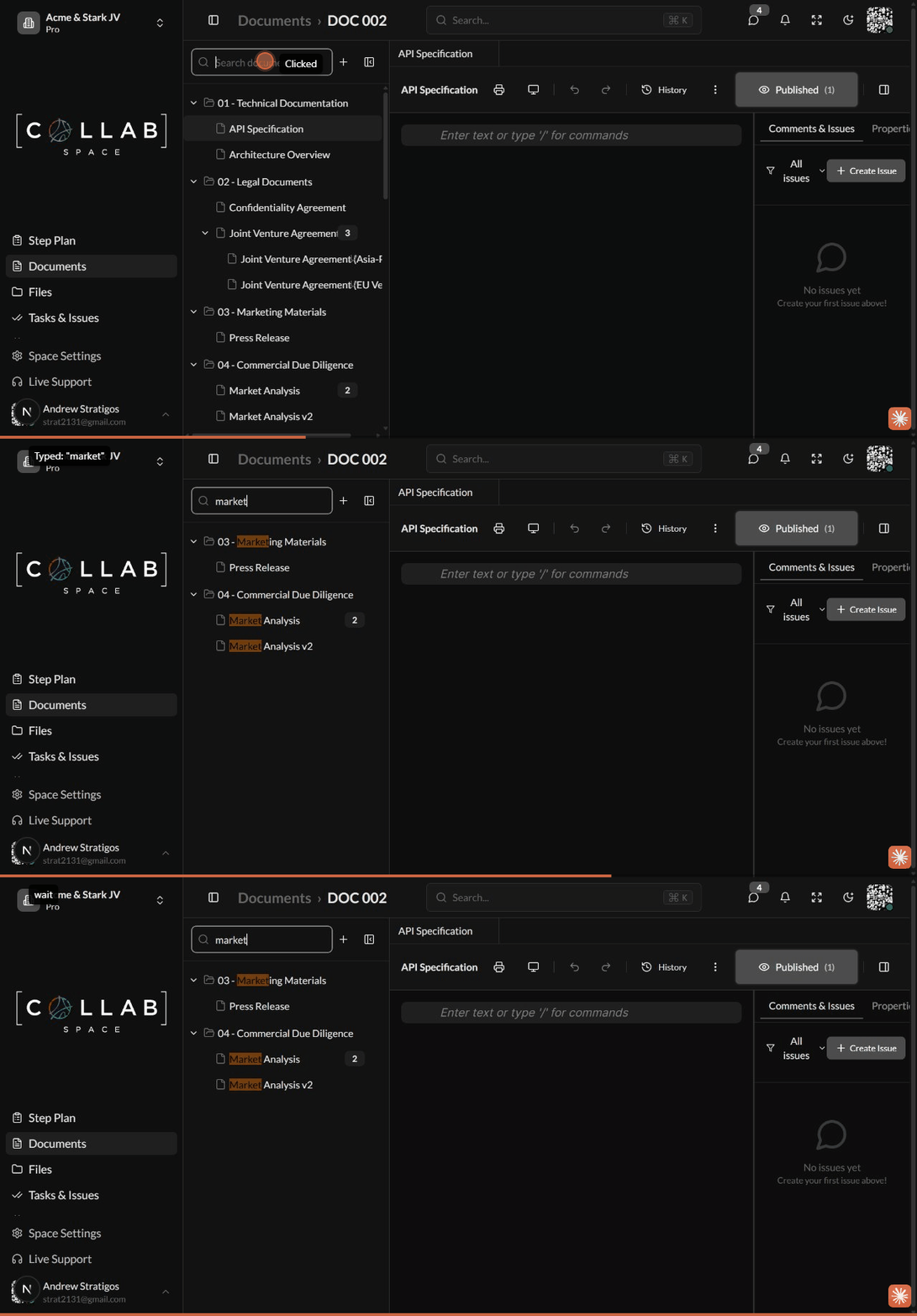
| Feature | Description |
|---|---|
| Real-time filtering | Results update as you type |
| Auto-expand folders | Parent folders expand to show matches |
| Match highlighting | Search terms highlighted in results |
| Clear button | Click X to clear search and show all |
Use the global command menu to find documents across your workspace:
Cmd/Ctrl + K to open the command menuSearch indexes document names for quick access.
Use the file tree search for quick name-based filtering:
Use global search to find documents containing specific text:
Cmd/Ctrl + K)While tag-based filtering is in development, you can:
A document's access — including its owner — is shown in the Access Control dialog. Open the dialog from the visibility button in the floating toolbar (or right-click the document and choose Change Visibility), then use global search to locate documents when needed.
| Action | Shortcut |
|---|---|
| New document | Ctrl+N |
| New folder | Ctrl+Shift+N |
| Focus editor | Ctrl+Shift+E |
| Global search | Cmd/Ctrl + K |
There is no keyboard shortcut that focuses the file-tree search bar — click it to start filtering.